Uploading and Managing Collection Files
This guide explains how to submit your collection files through the Merchant Portal and monitor their initial progress.
Before You Start
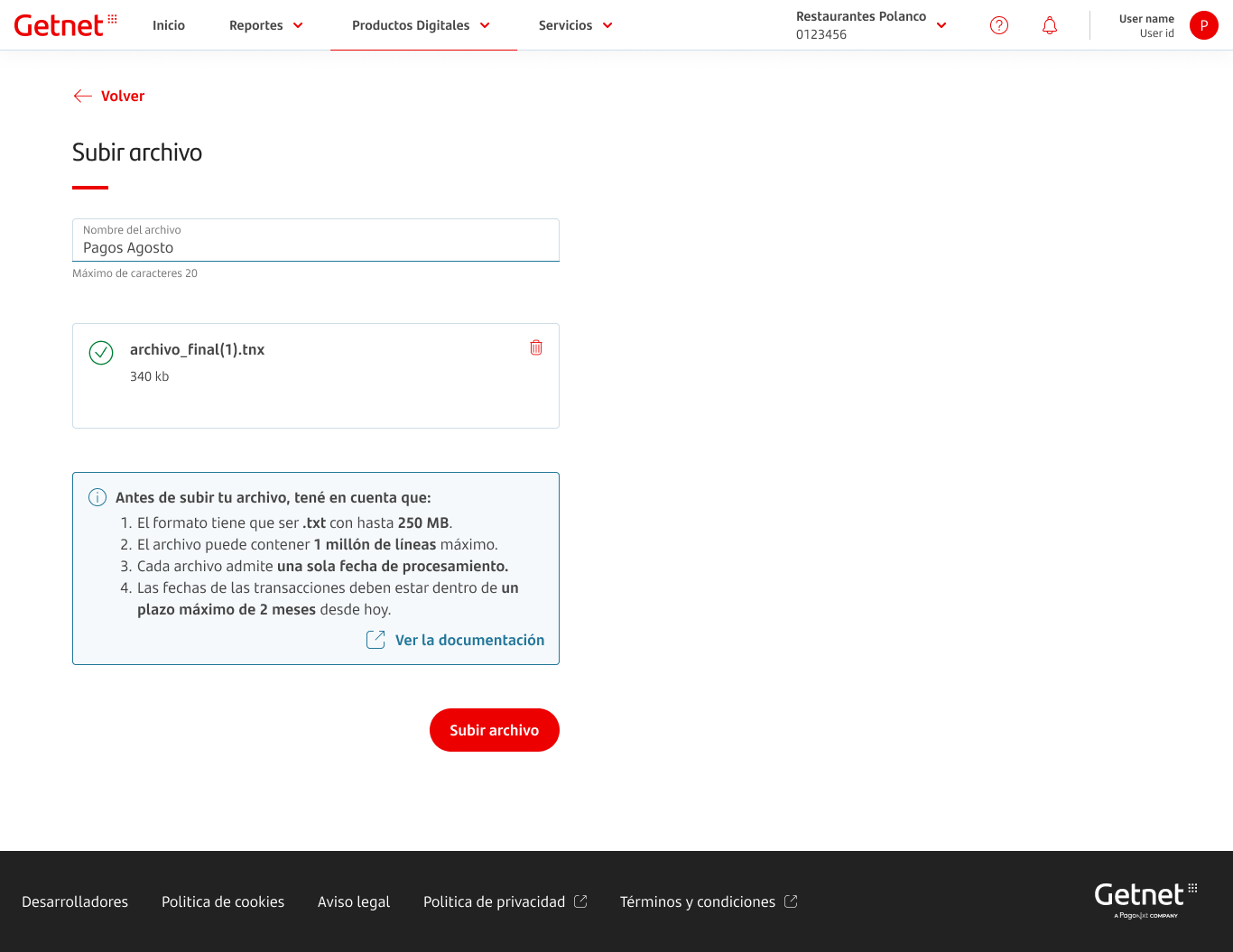
Ensure your .txt file meets the following technical criteria:
- Format is plain text (.txt).
- Maximum of 1,000,000 lines.
- File size does not exceed 250 MB.
- Maximum File Lenght does not exceed 203 characters.
- All transactions in the file share a single processing date.
For the complete file structure and field-by-field requirements, see the Input File Specifications reference page.
Step 1: Uploading the File
To begin the automatic debit process, upload your collection file through the Merchant Portal or through SFTP as described below.
- Log in to the Merchant Portal.
- Go to Services > Automatic Debit.
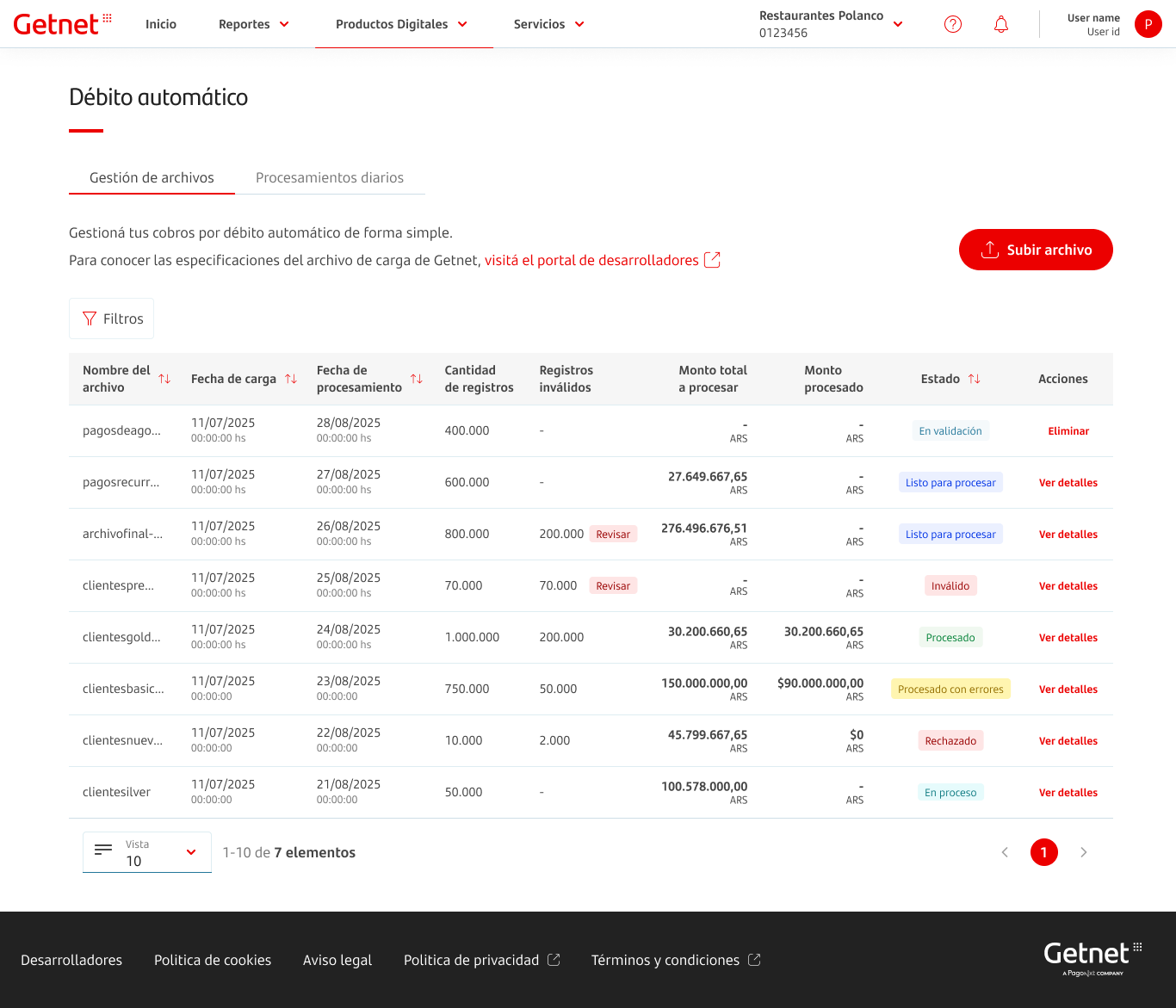
- In the Gestión de archivos tab, click the red Subir archivo button.
- Enter a Nombre del archivo (file name) so you can identify this batch later.
- Upload your .txt file by dragging it into the upload area or choosing it from your computer.
- Click Subir archivo to confirm.
Step 2: Monitoring Initial Validation
After upload, the file appears at the top of the list in Gestión de archivos. While it is En validación, the system is checking format and data. When validation finishes, you will see Listo para procesar (queued for the nightly run on your chosen date), Revisar (some records have errors and will not be processed), or Inválido (the whole file cannot be processed).
Note: Keep in mind that files must be uploaded at least 24 hours before the desired processing date.

Next Steps
Use the related references and guides below once your file has been uploaded.
- If you need to confirm every field and format rule, review Input File Specifications before submitting your next batch.
- When your file shows mixed or invalid records, follow Correcting and Deleting Files to download errors, fix data, and safely resubmit.
- After the nightly run, continue with Reconciling Daily Collections to check totals and download outcomes for accounting.
On this page
Uploading and Managing Collection Files